
IPTV EPG Not Loading? 10 Easy Fixes for a Blank TV Guide
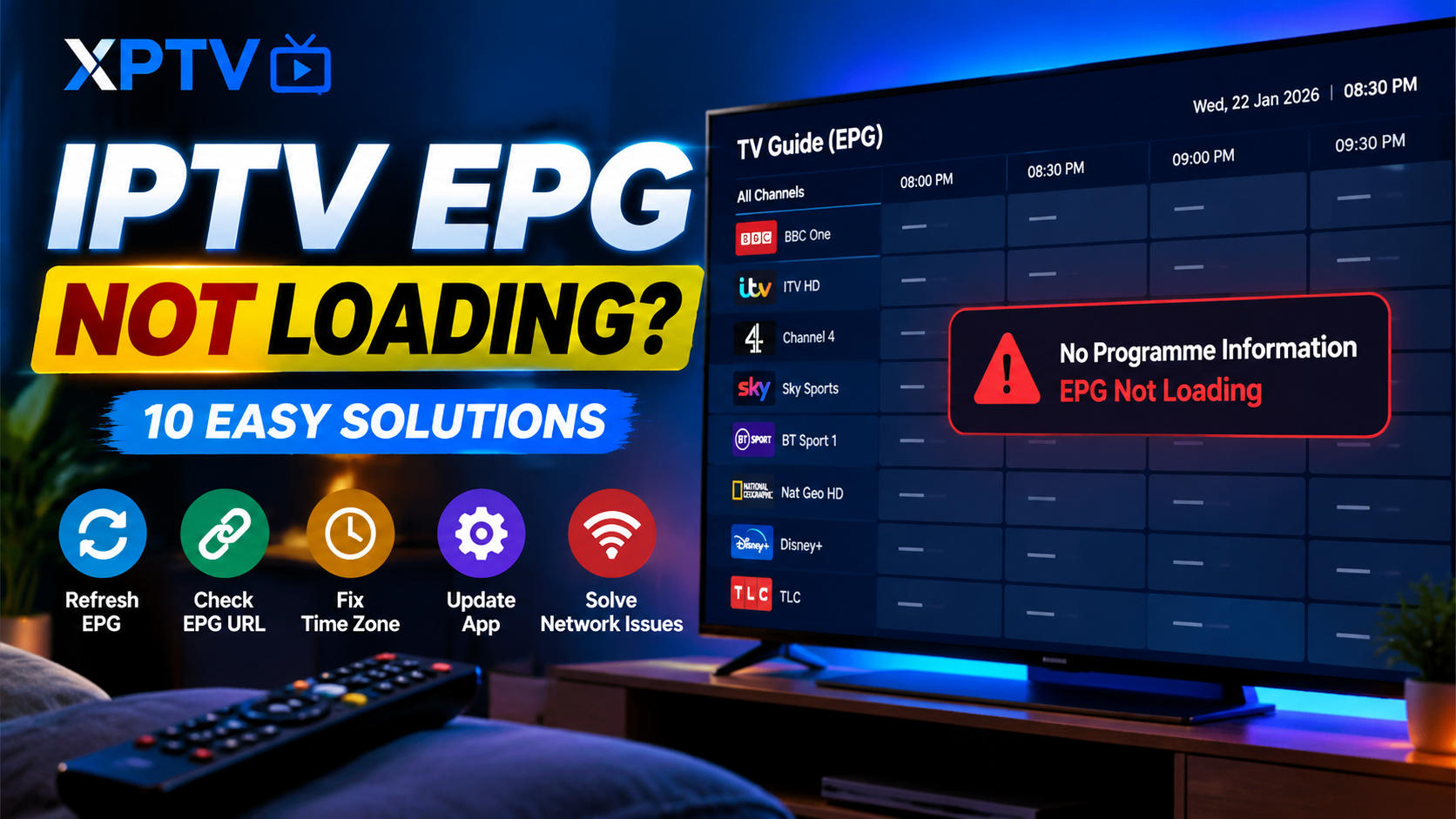
IPTV EPG not loading can be frustrating when your channels play normally but programme names, schedules and TV guide information are missing. The problem may be caused by an outdated guide source, incorrect URL, device time settings, channel mapping or a temporary service issue.
This guide from XPTV explains 10 practical ways to troubleshoot a blank Electronic Programme Guide (EPG) on compatible IPTV players, Smart TVs, Android TV devices, Fire TV devices and computers. Follow the steps in order to identify the likely cause without unnecessarily reinstalling your application.
XPTV TROUBLESHOOTING GUIDE
Fix Your Missing IPTV Programme Guide
Refresh EPG data, check guide settings and troubleshoot missing television schedules with these practical solutions.
What Is an IPTV EPG?
EPG stands for Electronic Programme Guide. It displays television schedule information, including channel names, current programmes, upcoming shows, descriptions and scheduled times.
Many IPTV applications receive guide information through a provider-integrated service, an EPG URL or a compatible XMLTV guide file. The application downloads the information and attempts to match programme entries to channels in your playlist.
If IPTV EPG not loading is the issue you are experiencing, the video stream may still work even when programme information is unavailable. The guide and video streams do not always depend on the same source.
Why Is IPTV EPG Not Loading?
Several problems can prevent an electronic programme guide from displaying correctly. Common causes include:
- An incorrect, expired or unavailable EPG URL.
- Guide data that has not refreshed successfully.
- Incorrect device date, time or time zone.
- Channel IDs that do not match the guide entries.
- Temporary application cache or software problems.
- An unstable internet connection.
- Incomplete or unavailable provider-side guide data.
Not every blank guide has the same cause. Check one setting at a time and refresh the guide after each relevant change.
How to Fix IPTV EPG Not Loading
1. Refresh the EPG Data
The first step is to refresh the guide inside your IPTV application. Guide information can become outdated or fail to download during the initial setup.
- Open your IPTV application.
- Navigate to Settings, EPG or Playlist options.
- Look for Update EPG, Refresh Guide or Reload EPG.
- Start the update and wait for it to finish.
- Return to the channel list and check the programme information.
Menu names vary between applications. If the update fails repeatedly, continue with the remaining steps.
2. Check Your EPG URL
An incorrect EPG address can prevent the guide from downloading. If your provider supplied a separate guide URL, compare it with the address saved in your application.
- Check that the URL has been entered correctly.
- Remove accidental spaces at the beginning or end.
- Confirm that the source format is supported by your player.
- Ask your provider whether the guide address has changed.
Some services configure the EPG automatically through account credentials. Follow your application’s instructions instead of adding an unrelated guide URL.
3. Correct Your Device Date and Time
Incorrect time settings can make programme schedules appear at the wrong time. Check your device’s date, clock and time zone before changing other settings.
- Open your device Settings.
- Select Date and Time.
- Enable automatic date and time if available.
- Choose the correct time zone for your location.
- Return to your IPTV player and refresh the guide.
If the guide loads but programmes appear several hours early or late, also check whether your player has a separate EPG time-offset setting.
4. Restart the Application and Device
A temporary software problem can interrupt guide downloads. Close the IPTV application completely, reopen it and refresh the EPG. If the guide is still missing, restart your television or streaming device.
This is a useful early troubleshooting step because it does not normally require you to remove your playlist or sign in again.
5. Clear the Application Cache
On supported Android TV and Fire TV devices, clearing an application’s temporary cache may help resolve loading problems.
- Open device Settings.
- Select Applications or Manage Installed Applications.
- Choose your IPTV player.
- Open Storage or the available storage options.
- Select Clear Cache, if available.
- Reopen the application and refresh the guide.
Avoid selecting Clear Data unless necessary. That option may remove saved settings and require you to enter your playlist or account details again.
6. Check Channel Matching and EPG IDs
Sometimes the guide downloads successfully but certain channels still show no programme information. This may happen when channel identifiers in your playlist do not match the identifiers in the EPG data.
Open the channel or EPG mapping settings if your application supports them. Check whether the affected channels are linked to the correct guide entries. If automatic matching is available, refresh the mapping according to the application’s instructions.
7. Test Your Internet Connection
An unstable connection can interrupt the download of guide information even if some channels continue to play.
- Test another website or application on the same device.
- Restart your router if other services are also affected.
- Try Ethernet instead of Wi-Fi if your device supports it.
- Check whether the same problem occurs on another device.
If only the guide fails while other internet services work normally, investigate the guide source and provider configuration next.
8. Update Your IPTV Player
An outdated application may contain bugs or compatibility issues affecting guide downloads. Check for updates from the application’s official website or the app store supported by your device.
Before updating, make sure you have access to your login details or know how to restore your playlist settings if needed.
9. Check the Provider’s EPG Service
The problem may be outside your device. A provider’s guide service can become temporarily unavailable, contain incomplete listings or require updated configuration.
Check the provider’s official announcements or contact its support team. Explain whether the entire guide is blank or only certain channels are affected.
If the same account shows missing EPG information on multiple devices, that comparison can help identify whether the issue is related to the guide source rather than one particular application.
10. Re-add the Playlist or Guide Source
If the previous solutions fail, you may need to remove and re-add the guide source or reconfigure the playlist. Before making changes, record your existing settings and confirm the correct configuration with your provider.
Reinstalling the application should be a last resort. It may remove saved preferences, and it will not fix an unavailable guide service or an incorrect provider URL.
IPTV EPG Not Loading: Troubleshooting Table
| Problem | Possible Cause | Suggested Fix |
|---|---|---|
| Guide is completely blank | Missing or unavailable EPG source | Refresh the guide and verify the source |
| Programme times are incorrect | Time zone or offset issue | Check device time and EPG settings |
| Some channels lack listings | Channel mapping mismatch | Check channel IDs and guide matching |
| Guide fails to refresh | Network, cache or source issue | Test connectivity and refresh the EPG |
| Guide fails on several devices | Shared source or provider issue | Ask the provider to check availability |
IPTV EPG Not Loading: Final Checklist
Before contacting technical support, check these items:
- ✓ Refreshed the guide manually.
- ✓ Checked the EPG URL or automatic guide configuration.
- ✓ Confirmed the device date, time and time zone.
- ✓ Restarted the application and device.
- ✓ Tested the internet connection.
- ✓ Checked channel mapping and EPG IDs.
- ✓ Looked for application updates.
- ✓ Checked whether the provider’s EPG service is available.
Frequently Asked Questions About IPTV EPG Not Loading
Why is my IPTV EPG blank when channels still work?
Video streams and programme guide information can use different sources. The guide may be unavailable or incorrectly mapped while the streams continue to work normally.
How do I update my IPTV programme guide?
Open the EPG or playlist settings in your application and look for Update EPG, Refresh Guide or a similar option. Wait for the update to finish before checking the channel list.
Why are programme times incorrect?
Check your device time zone and any EPG offset settings supported by your player. Incorrect or outdated guide data can also cause scheduling problems.
Do I always need a separate EPG URL?
No. Some services provide guide data automatically through account credentials or playlist integration. Others require a separate URL or compatible guide file.
Can clearing the cache fix EPG problems?
It may help if temporary application data is causing the problem. It will not resolve an unavailable guide source or incorrect provider data.
Should I reinstall my IPTV application?
Only consider reinstalling after trying simpler fixes. Save your settings and login details first, because reinstalling may remove stored information.
More IPTV Setup and EPG Resources
If you need help with other playlist or streaming setup issues, explore these related resources:
- Visit XPTV for IPTV setup and troubleshooting guides
- Read the M3U to Xtream Codes Converter guide
- Visit XMLTV for information about television programme guide data formats
Final Thoughts
If IPTV EPG not loading is affecting your setup, start with the guide refresh, source URL and device time settings. Then check channel mapping, application cache, internet connectivity and available updates.
If the guide remains blank across multiple devices, contact your provider and ask whether the EPG data is available and correctly configured. Troubleshooting one setting at a time makes it easier to identify the cause without losing your existing setup.
For more streaming setup and troubleshooting tutorials, visit XPTV.