
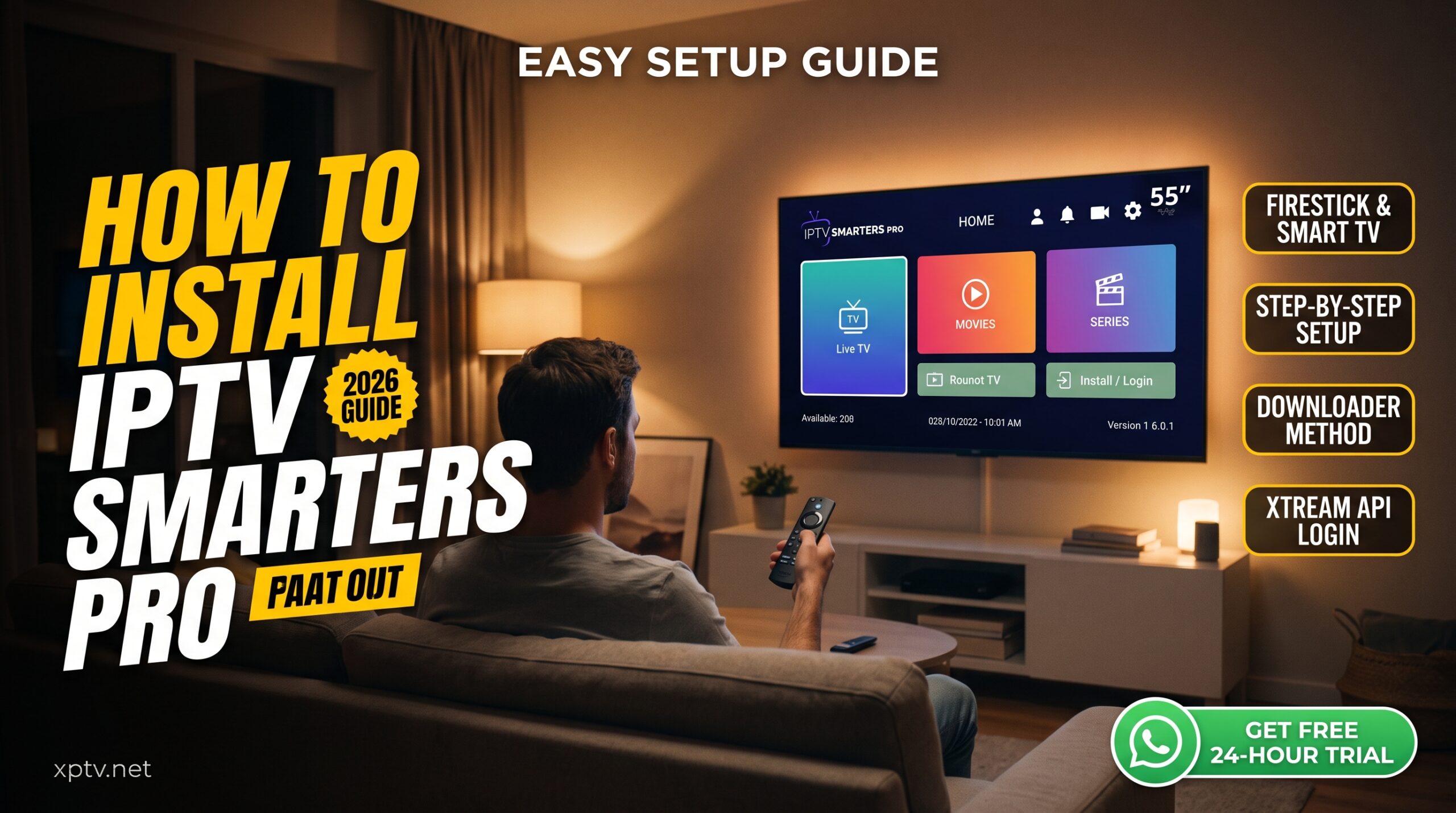
Setting up your streaming setup starts with choosing the right application, and learning how to install iptv smarters pro is the quickest route to seamless streaming. IPTV Smarters Pro remains the most dependable media player across Amazon Firestick, Android TV boxes, Samsung, and LG Smart TVs due to its intuitive electronic program guide (EPG) and 4K stream decoding.
Because the application is often not available directly on the official Amazon Appstore, this 2026 step-by-step walkthrough shows you exactly how to install iptv smarters pro using the Downloader utility, grant proper permissions, and configure your playlist credentials.
Step 1: Prepare Your Firestick for Sideloading
Before discovering how to install iptv smarters pro on Fire TV devices, you must permit unknown sources inside your operating system:
- Navigate to Settings > My Fire TV > Developer Options.
- Ensure Install Unknown Apps or Apps from Unknown Sources is toggled to ON.
- If Developer Options is hidden on newer Fire OS updates, go to Settings > My Fire TV > About, and click your device name 7 times rapidly until a notification confirms developer mode is enabled.
Step 2: Download & Install via Downloader App
- Open the Amazon Appstore, search for Downloader, and install it on your device.
- Open Downloader, grant required storage access permissions, and select the URL search box.
- Type in the direct download code or link for IPTV Smarters Pro APK and press Go.
- Once the installation file finishes downloading, click Install, and then select Done. You can safely delete the installation APK file to free up internal storage memory.
Step 3: Setup & Login to Your Streaming Service
Once you finish learning how to install iptv smarters pro, opening the application presents multiple playlist connection modes:
- Load Your Playlist or File/URL: Used for traditional M3U playlist link uploads.
- Login with Xtream Codes API (Recommended): Enter your Any Name, Username, Password, and Server Portal URL. This method automatically syncs categories, VOD movie posters, and live electronic program guides (EPG).
If you encounter buffering after installation, refer to our complete guide on how to fix IPTV buffering to optimize cache allocation and hardware acceleration.
You can also check network throughput using an independent test via Speedtest to verify stable latency.
Installing IPTV Smarters Pro on Samsung & LG Smart TVs
For Smart TV owners running Tizen OS or webOS, you do not need the Downloader tool. Simply open the Samsung Smart Hub or LG Content Store, search directly for IPTV Smarters Pro, click install, and launch the player using your Xtream Codes API credentials.
Best Settings to Optimize Playback Performance
After you complete the steps for how to install iptv smarters pro, applying these optimal settings guarantees zero frame drops:
- Stream Format: Switch stream format from default to MPEG-TS or HLS depending on your server protocol.
- Video Player: Change the default internal video player to Hardware Decoder (HW+) or VLC inside app settings for smoother 4K rendering.
- Time Format: Set your local time format to 24-hour or 12-hour synchronization to align the electronic program guide with live matches.
Frequently Asked Questions (FAQ)
Is IPTV Smarters Pro free to use on Firestick?
Yes. The standard version of IPTV Smarters Pro is completely free to download and supports multi-screen, EPG, and subtitles without mandatory license fees.
Why did IPTV Smarters show an invalid details error?
Double-check your portal URL formatting, ensuring you did not add extra slashes or spaces after the port number, and confirm your subscription line is active.
Can I install IPTV Smarters Pro on Android phones and tablets?
Yes. The application can be downloaded directly from the Google Play Store or sideloaded as an APK file on any Android device with identical features.
Best IPTV for Firestick in 2026: Setup, Anti-Freeze & 4K Streams
October 19, 2026[…] Install IPTV Smarters […]