

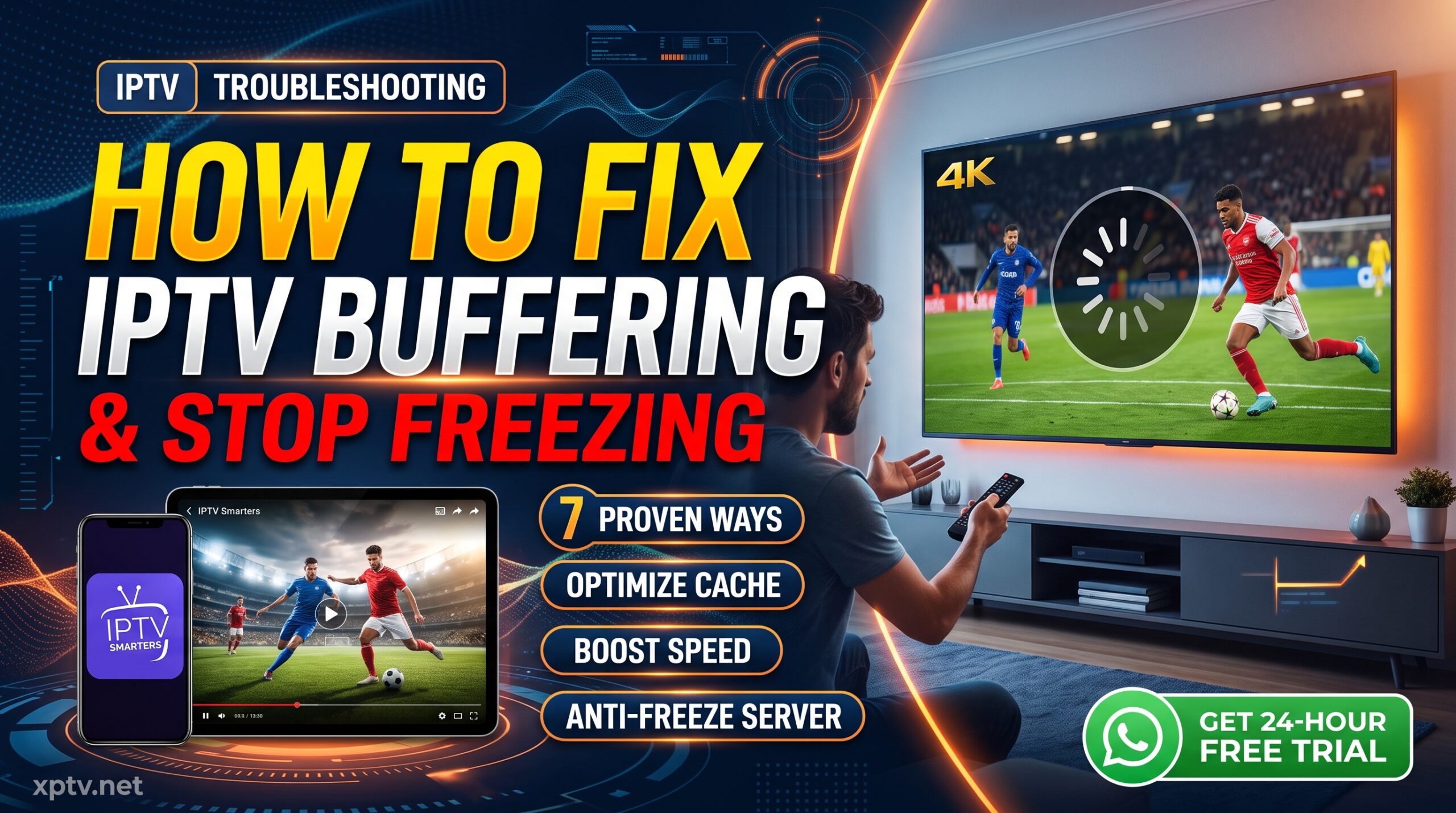
Nothing ruins a crucial live sports match or blockbuster movie faster than endless loading wheels. Knowing how to fix iptv buffering is vital if you want seamless, high-definition streaming on Firestick, Smart TV, or Android boxes. While server stability is critical, frequent stuttering is often caused by local cache congestion, ISP throttling, or incorrect media player settings.
In this practical 2026 troubleshooting guide, we cover 7 proven, step-by-step methods to show you exactly how to fix iptv buffering, stabilize your home network, and permanently eliminate stream freezing.
1. Clear Media Player Cache & App Data
Media players like IPTV Smarters Pro, TiviMate, and XCIPTV store temporary stream fragments to deliver instant channel zapping. Over time, these files corrupt and cause stuttering. If you are learning how to fix iptv buffering on streaming sticks, clearing app cache should always be your first troubleshooting step.
- Go to your device’s Settings > Applications > Manage Installed Applications.
- Locate your streaming player app.
- Click Clear Cache. Restart the application and reload your playlist.
2. Adjust Buffer Size in Player Settings
If your internet speed fluctuates throughout the day, adjusting your playback buffer helps eliminate sudden frame drops. When discovering how to fix iptv buffering, fine-tuning buffer duration inside your application preferences is the most effective internal setting:
- Small / None (0s): Ideal only for ultra-fast gigabit fiber connections where latency is minimal.
- Medium / Normal (2–3s): The recommended sweet spot for live sports, balancing delay with frame stability.
- Large (5–10s): Best for high-bitrate 4K movies and series, preventing unexpected pauses during peak evening bandwidth usage.
3. Switch to Hardware Video Acceleration (HW+)
By default, standard software decoders process video streams using your streaming device’s CPU, which overheats budget sticks and causes severe frame dropping. Inside your player settings, navigate to Player / Stream Format and switch decoding from Software to Hardware Acceleration (HW / HW+) or ExoPlayer. Using the best IPTV service paired with modern hardware decodes 4K content effortlessly without lag.
4. Switch from 2.4 GHz Wi-Fi to 5 GHz or Ethernet
Standard 2.4 GHz home Wi-Fi bands suffer severe interference from household appliances, walls, and neighboring routers. For consistent 4K streaming without packet loss:
- Switch your smart TV or Firestick connection to the 5 GHz Wi-Fi band.
- Even better, connect your streaming device directly via a USB-to-Ethernet adapter cable to ensure zero wireless drops.
- You can verify your current connection quality using an official Speedtest check before streaming.
5. Bypass ISP Speed Throttling
Many internet service providers detect high-bandwidth streaming protocols during prime evening hours and deliberately throttle downstream speeds. Understanding how to fix iptv buffering often involves using an optimized network route or private connection to stop deep packet inspection and keep your speeds consistent.
6. Restart Your Network Router & TV Box
Home routers accumulate DNS cache errors and routing tables become congested after weeks of continuous uptime. Unplug your router and streaming stick from power for 60 seconds, then power back on to clear local network congestion and refresh your IP address.
7. Switch to a Premium Anti-Freeze Server
If your verified download speed exceeds 30 Mbps and your streams still freeze, the root problem lies with overloaded shared servers. Low-grade suppliers squeeze thousands of concurrent users into weak bandwidth pipes. Knowing how to fix iptv buffering starts with choosing a premium anti-freeze network that distributes user traffic across dedicated global load-balancers for smooth, buffer-free playback.
Frequently Asked Questions (FAQ)
What internet speed do I need to stop buffering on IPTV?
A consistent speed of 15 Mbps is required for standard 1080p Full HD streams. For 4K Ultra HD sports at 60 FPS, a minimum connection of 30 to 50 Mbps is recommended to prevent stutter.
Why does IPTV buffer only during live sports matches?
Live events generate massive traffic spikes. Low-cost providers overload their server capacity during major football or cricket games, causing network drops. High-end servers utilize dynamic load balancing to maintain smooth playback.
Which player handles buffering best on Android and Firestick?
Applications like TiviMate and IPTV Smarters Pro provide superior customizable buffer size controls and hardware acceleration compared to default generic smart TV players.
How to Install IPTV Smarters Pro on Firestick & Smart TV (2026 Guide)
October 17, 2026[…] […]