
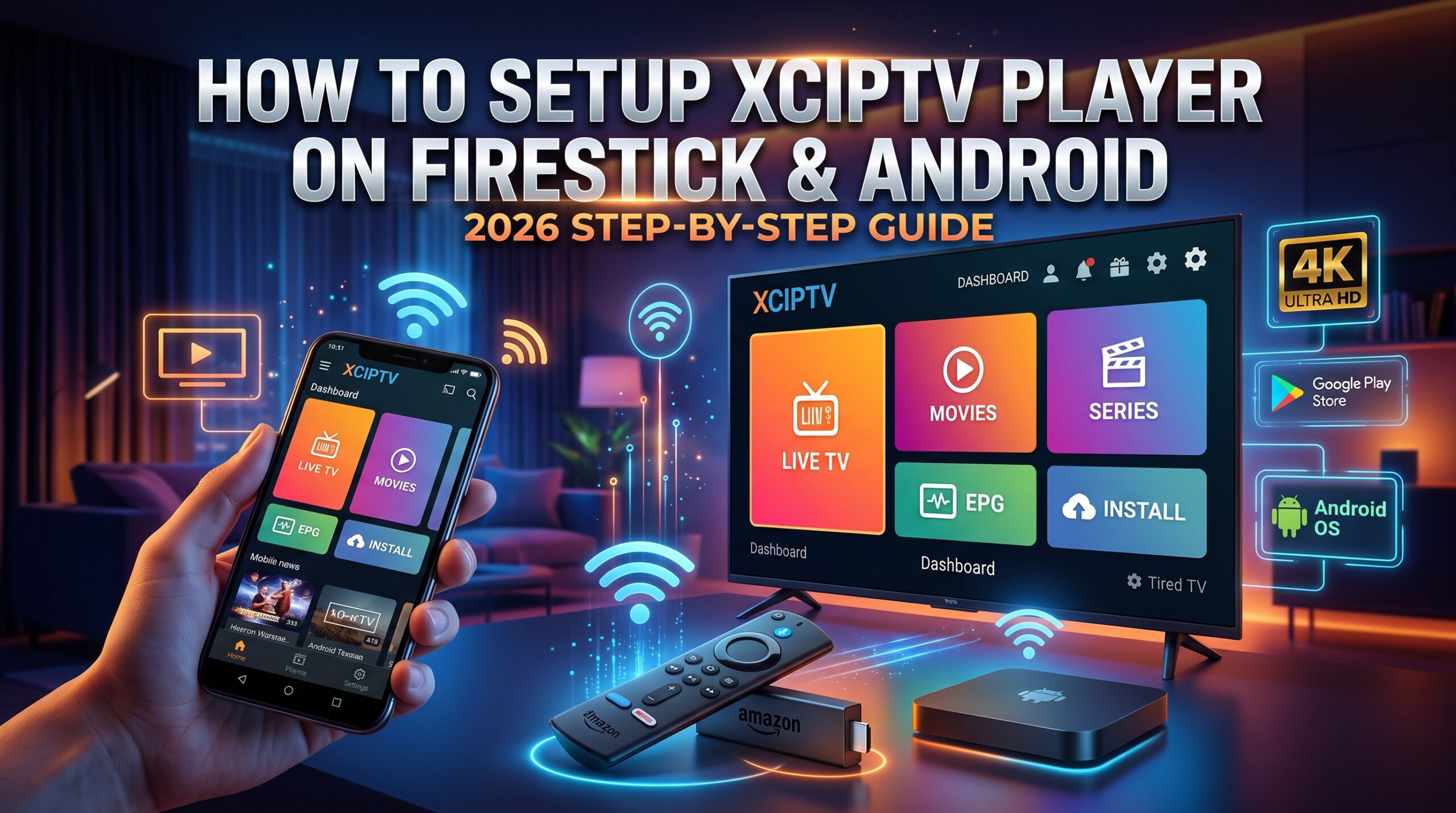
If you are looking for an intuitive, fast, and feature-rich media player for your Android box or Firestick, learning how to setup XCIPTV Player is one of the best choices you can make in 2026. With its modern launcher-style interface, built-in backup options, and dual media player engines, XCIPTV has become an essential streaming app for thousands of cord-cutters worldwide.
Whether you want to enjoy 4K live sports, premium movies, or binge-worthy series, this detailed tutorial will guide you step-by-step on how to install and setup XCIPTV Player on Amazon Firestick, Fire TV Cube, Android TV, and mobile devices without buffering or playback issues.
Looking for alternative player setups? Check out our guides on how to setup IPTV on Firestick or how to install TiviMate on Android TV.
Why Choose and Setup XCIPTV Player in 2026?
Unlike basic media players, XCIPTV Player is specifically customized for TV remote navigation and large screens. Here is why you should setup XCIPTV Player on your primary streaming hardware:
- Dual Built-in Players: Comes integrated with ExoPlayer and VLC Media Player, ensuring smooth playback without audio or video sync issues.
- Modern Launcher Layout: Features clean dashboard sections for Live TV, Movies, Series, Catch-up, and Multi-screen viewing.
- Multiple EPG Sources: Automatically loads and updates Electronic Program Guides so you can track live broadcast timings.
- Built-in Speed Test & Backup: Check your real-time internet speed inside the application and back up your playlist settings easily.
- Parental Locks: Easily secure mature categories and adult content folders with custom password protection.
How to Install XCIPTV Player on Amazon Firestick
Since XCIPTV is not directly listed on the default Amazon Appstore in all regions, sideloading it using the trusted Downloader application is the standard procedure.
- Turn on your Firestick and navigate to Find > Search from the home dashboard.
- Type Downloader, select the orange icon, and click Download / Get.
- Go to Firestick Settings > My Fire TV > Developer Options.
- Turn on Install Unknown Apps for the Downloader application.
- Launch Downloader, grant storage permissions, and type the official XCIPTV direct APK link or Downloader code in the URL box.
- Click Go, wait for the file to download, and select Install.
- Once installed, delete the APK file to save Firestick internal storage and open the player.
How to Setup XCIPTV Player via Xtream Codes API
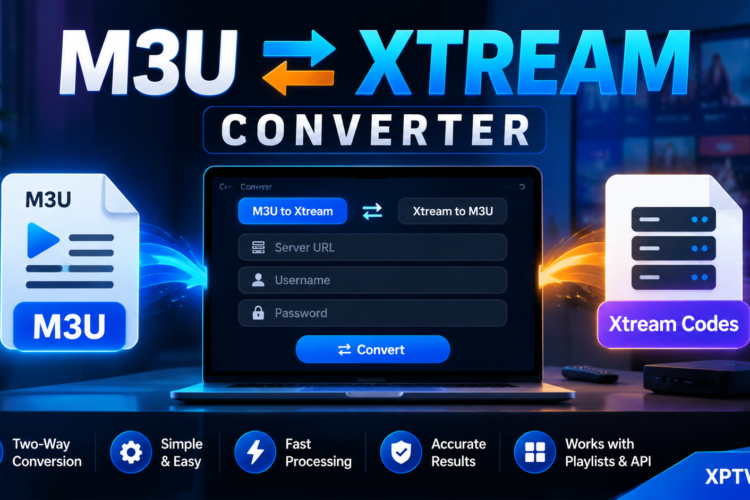
The Xtream Codes API method is the most reliable, clean, and fastest route to setup XCIPTV Player with automated channel categories and series posters.
- Open the app on your streaming device to initiate the setup XCIPTV Player configuration.
- On the main login screen, enter your active subscription credentials:
- Server URL / Portal URL: Enter the server address including port number (e.g.,
http://portal-dns.com:8080). - Username: Type your assigned subscription username accurately.
- Password: Enter your account password without adding blank spaces before or after.
- Server URL / Portal URL: Enter the server address including port number (e.g.,
- Check all details carefully and click on the Sign In button.
- Allow the application 30 to 60 seconds to process your live channel index, VOD libraries, and EPG tables.
- Once the progress bar completes, you will land on the interactive XCIPTV dashboard ready to stream.
How to Install and Setup XCIPTV Player on Android TV
If you own an Nvidia Shield, Chromecast with Google TV, or any certified Android TV box, the installation process is straightforward:
- Open the official Google Play Store on your Android TV.
- Search for XCIPTV Player using the search bar or voice remote.
- Click Install to download the application directly from the Play Store.
- Open the application and select Login with Xtream Codes API to proceed with your setup XCIPTV Player steps.
- Fill in your portal domain, username, and password, then hit Sign In to load your media library.
Performance Optimization & Troubleshooting
If you notice channel buffering or sluggish interface transitions after you setup XCIPTV Player, try these proven solutions:
- Switch Video Player Engine: Navigate to Settings > Player Selection inside the app. If ExoPlayer buffers on specific HD streams, switch the default player to VLC Player for smoother hardware acceleration.
- Clear Cache Frequently: Go to your device Settings > Applications > XCIPTV > Clear Cache. This removes temporary stream files and keeps navigation swift.
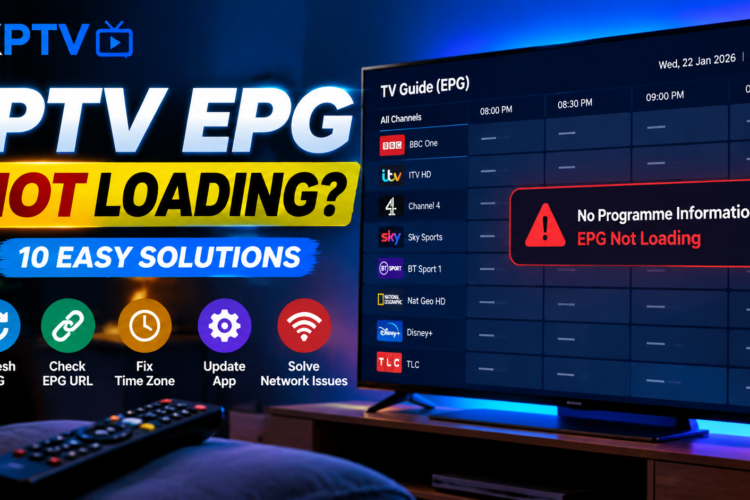
- Refresh EPG Data: If show timings show blank spaces, open Settings > EPG > Refresh EPG to force an instant schedule sync from the server.
- Bypass ISP Throttling: Many internet providers throttle high-volume streaming during live sports. Using a fast VPN with WireGuard protocol will eliminate buffering and unlock geo-restricted channels.
Frequently Asked Questions
Is XCIPTV Player free to download?
Yes, XCIPTV Player is free to download and use on Android TV and Firestick devices. An optional Pro version is available for advanced customization and white-label options.
Does XCIPTV Player include live channels?
No. XCIPTV Player is strictly an interface media player. It does not provide, host, or sell any streaming playlists. You must have an active subscription or M3U line from a third-party IPTV service provider.
Can I record live TV shows on XCIPTV?
Yes, XCIPTV includes a built-in recording feature. To use it, you will need an external storage drive connected to your Firestick or Android TV box with sufficient free memory.