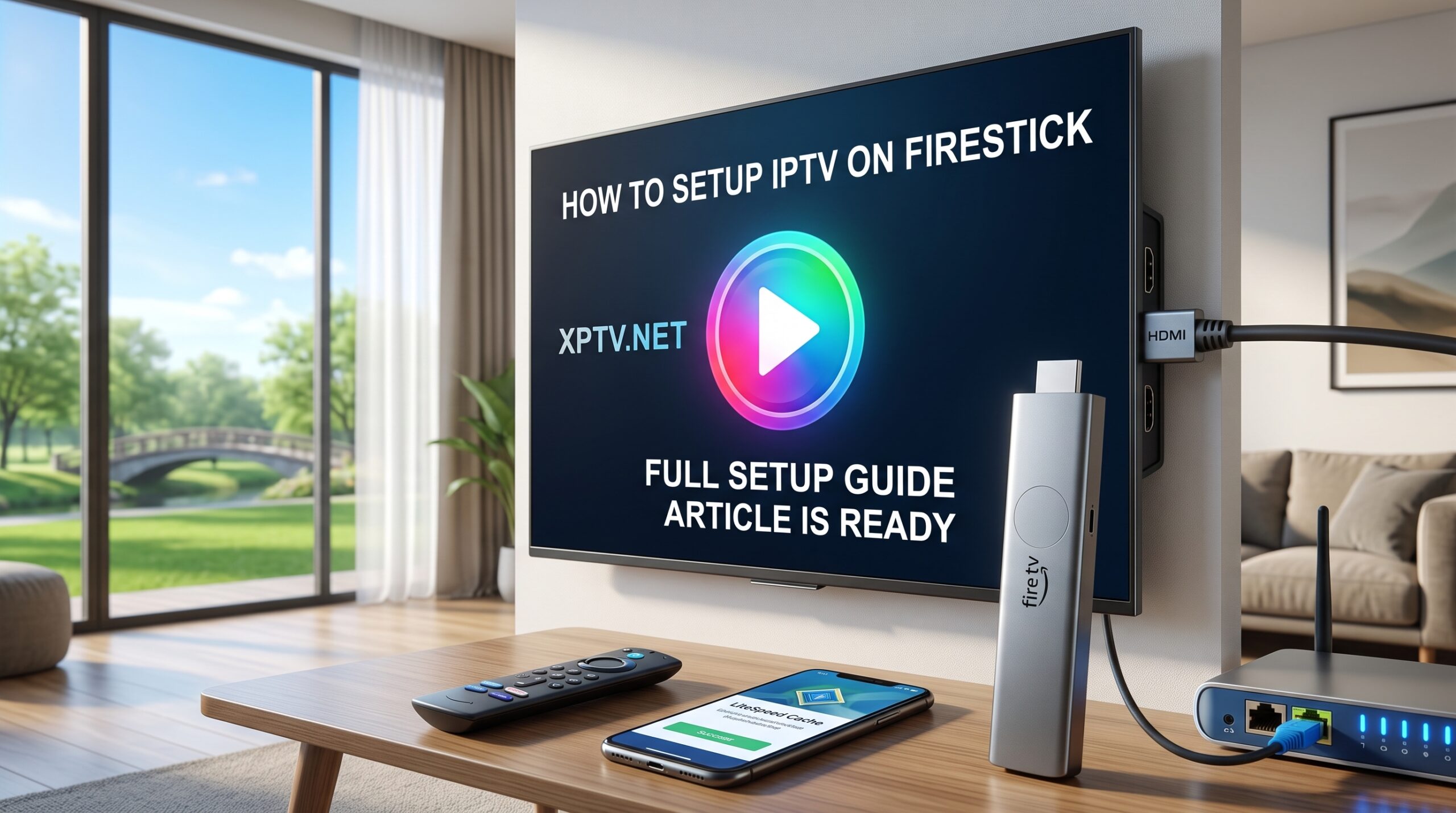
How to Setup IPTV on Firestick with Downloader App
Amazon Fire TV Stick remains the most popular streaming device in the world due to its high-speed 4K playback, intuitive interface, and open Android architecture. If you want to transform your television into a complete global entertainment center, learning
how to setup IPTV on Firestick is the easiest and most effective route.
Whether you use a Firestick 4K Max, Fire TV Cube, or Fire TV Lite, this complete guide provides the step-by-step procedure to configure third-party players, connect your playlists, and achieve seamless, buffer-free playback.
Prerequisites Before Setting Up Your IPTV on Firestick
To avoid buffering interruptions and setup errors, ensure you have the following elements ready before beginning configuration:
- An active Amazon Firestick device connected to high-speed home Wi-Fi (at least 25–30 Mbps for 4K).
- An active subscription package from our official IPTV pricing catalog with active M3U or Xtream Codes API login credentials.
- Five minutes to adjust Firestick developer permissions.
How to Setup IPTV on Firestick with Downloader App
Step 1: Enable Developer Options on Firestick
Because premium IPTV player applications are third-party software, Fire TV OS requires you to grant installation permissions through the Downloader utility:
- Navigate to the Settings (Gear icon) on your Firestick home screen.
- Select My Fire TV (or Device & Software on newer models).
- Click on About, then press the Select button on your remote 7 times until you see the notification: “No need, you are already a developer.”
- Press Back to return to My Fire TV, open Developer Options, and turn Install Unknown Apps to ON.
Step 2: Install the Downloader App
The Downloader application is the official browser utility used to sideload Android streaming tools onto your Firestick:
- From your Firestick main menu, click Find and choose Search.
- Type
Downloader and select the orange icon app from the official Amazon Appstore.
- Click Download / Get and launch the app once installation finishes.
- Grant required file storage permissions when prompted.
Step 3: Download and Install Your Preferred IPTV App
While multiple media players exist, we recommend tested players covered extensively across our
best IPTV applications directory. For standard Firestick setups,
IPTV Smarters Pro and
TiviMate deliver the cleanest experience:
- Open the Downloader app and select the URL address bar.
- Enter the direct APK download code or link for your chosen player (e.g., IPTV Smarters or XCIPTV).
- Wait for the APK file to finish downloading, then click Install.
- Once installed, click Done and select Delete to clear the temporary installation file and save internal Firestick storage.
Step 4: Load Your Playlist Credentials
With your player successfully installed, configure your active service line details:
- Open the installed streaming application from your Your Apps & Channels list.
- Select Login with Xtream Codes API (preferred for fast EPG and VOD loading).
- Enter a profile nickname (e.g.,
XPTV HD).
- Input the exact Username, Password, and Server URL provided in your welcome email.
- Click Add User / Submit and wait 30–60 seconds for the app to sync live television channels, series directories, and electronic program guides (EPG).
You can instantly verify the complete broadcast lineup by cross-checking our real-time
IPTV channel list.
Tips to Stop Buffering on Fire TV Stick
If you experience line lag, frame drops, or audio delays, implement these proven maintenance practices:
- Clear Player Cache Regularly: Go to Settings > Applications > Manage Installed Applications > Select App > Clear Cache to free up Firestick RAM.
- Switch from Wi-Fi to Ethernet: Using a dedicated Amazon Ethernet adapter bypasses local Wi-Fi interference and guarantees stable bitrates.
- Use Hardware Acceleration: Within player settings (such as TiviMate or Smarters), change video decoder options from Software to Hardware for smoother rendering.
- Consult Technical Support: If specific regional channels freeze due to ISP throttling, submit a ticket through our contact IPTV support team for optimized server DNS addresses.
Looking to Start Your Own Streaming Business?
In addition to single-user subscriptions, we offer wholesale panel access for entrepreneurs looking to manage client lines, generate free trials, and earn high profit margins. Discover full credit details and management dashboard features on our dedicated
IPTV reseller panel portal.
Following these steps makes it straightforward to understand
how to setup IPTV on Firestick without technical issues. If you need any assistance with
how to setup IPTV on Firestick, our support desk is always ready to guide you.
For more technical details on streaming protocols, review the internet architecture standards explained on
Wikipedia.